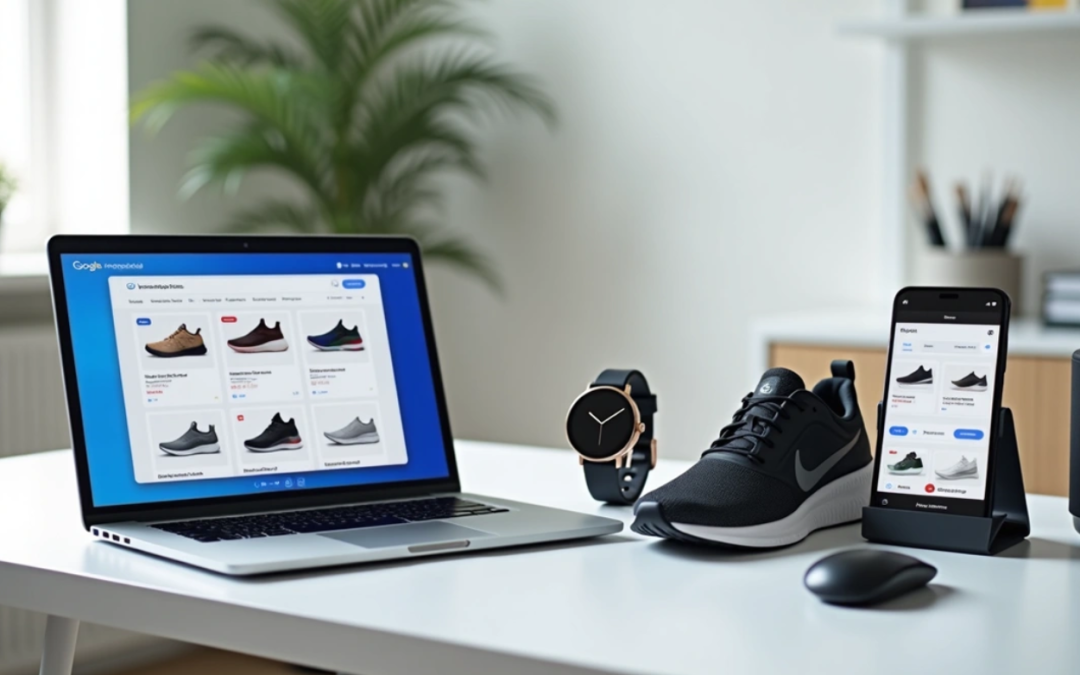
The numbers are striking – 80% of all Google Ads spend in ecommerce flows into google shopping ads optimization efforts.
Google Shopping Ads have become the cornerstone of online retail advertising. American retailers now direct 76% of their search ad budgets to this platform. The economics make perfect sense. Google Shopping ads cost $0.66 per click on average, which is substantially lower than standard search ads at $2.69 per click.
Shopping ads provide better overall value despite their conversion rate of 1.91% compared to the industry average of 2.81% for other formats. The Cost Per Action stands at $38.87, beating traditional search ads at $45.27. These eye-catching product displays appear right at the top of search results, capturing attention while customers actively search for products.
This piece offers a complete roadmap to our proven google shopping strategy. You’ll discover everything from the original setup to advanced optimization methods. The guide helps you structure google shopping campaigns, implement optimization best practices, and become skilled at managing google shopping ads to maximize ROI. Our expert tips will help transform browsers into buyers, whether you’re new to the platform or improving your current strategy.
Understanding Google Shopping Ads
Google Shopping Ads have changed the way retailers showcase their products online. These product-focused ads show visual representations to consumers who search for specific items, unlike traditional advertising methods.
Understanding Google Shopping Ads
What makes Shopping Ads different from text ads
Shopping Ads and text ads have a basic difference in how they look and target customers. Text ads use only words to get their message across. Shopping Ads, however, show a complete visual package that has product images, titles, prices, store names, and sometimes extra details like star ratings or shipping information. Customers can see exactly what they want to buy, which creates an instant connection.
The way these ads target customers is also different. Text ads need advertisers to bid on specific keywords to trigger their ads. This gives them exact control over when ads show up. Shopping Ads work through product data feeds in Google Merchant Center instead. Google’s algorithm matches your products to user searches based on the product details you provide.
These differences give merchants several benefits:
- Higher engagement: Shopping Ads get up to 30% more clicks than regular text ads
- Pre-qualified traffic: Shoppers who click have already seen product details and are ready to buy
- Multiple visibility opportunities: Your products can show up multiple times in Shopping results, while text ads only show once per advertiser
- Cost efficiency: You’ll pay less per click with Shopping Ads than text ads
The campaign structure sets these ad types apart too. Both run through Google Ads, but need separate campaign setups. You’ll need specific strategies to optimize each format rather than just changing placements like other ad platforms.
Users who see both your Shopping Ads and text ads are 90% more likely to visit your website. This combination of ad formats gives retailers a powerful way to implement a detailed google shopping strategy.
Where Shopping Ads appear on Google
Shopping Ads show up in many places across Google’s ecosystem. Knowing these locations will help you optimize your google shopping campaigns.
Shopping Ads appear most often next to Google search results. Users who search for products see these ads in a carousel at the top of the page. Some searches might show them in the Knowledge Panel on the right side.
Shopping Ads also appear in these valuable spots:
- The Google Shopping tab: Paid Shopping Ads show at the top, with free product listings below. Shoppers use this tab for product-specific searches, making it perfect for reaching people ready to buy.
- Google Images: A carousel at the top shows Shopping Ads, which may also blend into the image listings. This helps reach shoppers who prefer visual searches.
- Google Search Partner websites: Your ads can show up on other search results pages through Google’s partner network.
- Google Display Network: Your ads appear in standard display spots and next to YouTube videos.
- Gmail: Products show up in the Promotions or Social tabs.
- Google Discover: Mobile users see your products in this curated feed on Android devices, the Google app, and mobile Google.com.
- Maps: Products appear through Local Inventory Ads integration.
Some places, like Google Search Partners and the Display Network, show only paid listings instead of free organic product listings.
These multiple touchpoints make Shopping Ads essential for retailers who want to maximize their product visibility. The right shopping ads optimization across these spots ensures your products reach potential customers wherever they browse.
How Google Shopping Ads Work
Unlike regular ads that work with keywords, Google Shopping ads work differently. These ads run on product data and let shoppers see exactly what they want to buy before they click.
How product data triggers ads
Google Shopping ads work in a unique way compared to text ads. Your product data, not keywords, tells Google when to show your ads. This creates a natural link between what shoppers look for and your products.
The system works like this: A customer types in what they want, and Google’s system looks at your product details to find matches. The system looks at:
- Product titles and descriptions
- Product categories
- Price points
- Brand information
- Product identifiers (GTINs, MPNs)
- Image quality
- Availability status
The quality of your product data affects how well your Google shopping ads work. A good product description does more than meet requirements – it helps Google match your items with the right searches. That’s why businesses that spend time improving their product feeds usually get better results.
Better product details can make a big difference. Adding GTINs (barcodes) helps Google sort your products better. This could help your items show up in premium spots like “Top” or “Best” search results.
Each detail in your feed tells Google which searches should show your ads. Based on what people search for and how they behave, the system shows them the most relevant products from your high-quality feed.
Role of Google Merchant Center and Google Ads
Shopping ads need two platforms that work together: Google Merchant Center and Google Ads.
Google Merchant Center is the backbone of your Shopping ads plan. This free tool helps store owners upload and handle product details that power ads across Google. Think of it as your product information hub – it stores everything from pictures and prices to shipping details and stock levels.
Google Merchant Center does several important things:
- Stores your complete product catalog data
- Makes sure your product details meet Google’s rules
- Checks if you follow policies and spots technical issues
- Links your data to Google Ads
Google Ads handles the advertising side of things. After you connect your Merchant Center account, you can start Shopping or Performance Max campaigns with your product list. This link lets you:
- Set campaign budgets and bidding strategies
- Create ad groups and product groups
- Handle targeting options
- Track how well ads perform
- Make campaigns work better for ROI
You need both platforms working together. Your Google Ads account must connect to Merchant Center before running Shopping campaigns. This connection gives Google Ads access to your product details and creates ads that update when you change your feed.
Performance Max campaigns use this connection with Google’s AI to find customers. The system reviews your campaign settings, including budget and product feed, then works to meet your goals. This automatic process makes managing Google shopping ads easier and often brings better results.
To sum up, Merchant Center provides product information for your ads, while Google Ads gives you tools to run and improve campaigns. Together, they help connect your products with millions of potential buyers across Google’s network.
Setting Up Your Product Feed
A well-laid-out product feed is the foundation of successful Google Shopping campaigns. This digital catalog has all the vital information Google needs to match your products with relevant search queries and display them appropriately.
Setting Up Your Product Feed
Required product attributes
Your product feed must include several mandatory attributes to pass Google’s validation. Google’s product data specification lists these vital elements:
- ID: A unique identifier for each product (≤50 characters) that stays the same across updates
- Title: Descriptive product name (≤150 characters) that shows exactly what you’re selling
- Description: Detailed product information without promotional text (≤5000 characters)
- Link: URL that leads to the product’s landing page on your verified domain
- Image_link: URL to your product’s main image that meets Google’s quality guidelines
- Price: Accurate product price with appropriate currency code
- Availability: Current stock status (in stock, out of stock, or preorder)
- Brand: Manufacturer or brand name (required for most new products)
- GTIN/MPN: Product identifiers such as barcodes or manufacturer part numbers
Retailers who add correct GTINs to their product data see a 20% increase in clicks on average. Plus, adding optional attributes like product_type and google_product_category (at least 2-3 levels deep) can improve your google shopping ads optimization results.
Using Google Sheets or feed management tools
You’ll need a way to send your product information to Google Merchant Center. Here are two main options:
Google Sheets Method: This simple option lets you maintain a spreadsheet with your product data. Here’s how to set it up:
- Go to Products > Add Products in Merchant Center
- Select “Use a Google Sheets Template”
- Fill in the template with your product details
- Set a syncing schedule (default is every 24 hours)
This method works best for smaller inventories or businesses new to shopping ads optimization.
Larger catalogs or complex needs benefit from feed management tools that offer:
- Automated feed creation from various sources including eCommerce platforms
- Data transformation features to extract information (like color from descriptions) or generate missing attributes
- Error detection before submission to Google Merchant Center
- Regular updates multiple times daily to keep pricing and availability accurate
These platforms are a great way to get a detailed google shopping strategy by testing product titles—which has shown to increase ROAS by 25% in just 30 days.
Common feed errors to avoid
Small feed issues can derail your google shopping ads management efforts. Google’s data shows these common problems:
Critical errors that stop products from showing:
- Missing required attributes
- Invalid product URLs (especially with incorrect domains)
- Price mismatches between feed and landing page
- Website claimed in Merchant Center not matching product URLs
Data quality issues that hurt performance:
- Product titles missing key information
- Missing GTINs available from manufacturers
- Promotional text in titles or descriptions
- Poor image quality or promotional overlays on images
Data validation before submission is crucial. About 87% of retailers face feed issues that affect their campaign performance.
Regular feed audits, pre-submission validation tools, and product information updates every 30 days help maintain active status in Google Merchant Center and prevent these issues.
Creating a Google Shopping Campaign
You need to set up your Google Shopping campaign after preparing your product feed. The campaign structure you choose will shape how you connect with potential customers.
Linking Merchant Center with Google Ads
You must connect your Google Merchant Center and Google Ads accounts before you launch any Shopping campaign. This link lets your ads access product information from Merchant Center.
The standard linking process needs two steps:
- Send a link request from your Merchant Center account to your Google Ads account
- Approve the request in your Google Ads account
Administrators with access to both accounts can skip the invitation step and create a direct link. This optimized process saves time. Users without proper permissions need to use the standard invitation process.
The link gives Google Ads access to your product data. Your Shopping ads update on their own when you change your feed. This connection builds the base for all future campaign work.
Choosing campaign goals and types
The next step is picking the right campaign goals after you make the connection. Google gives you three main goals for Shopping campaigns:
- Sales: Works best to drive online conversions, in-app sales, phone calls, or in-store visits
- Leads: Great for getting potential customers to sign up for newsletters or share contact details
- Website traffic: Helps bring more visitors to your website
You’ll then pick between two campaign types based on your google shopping strategy:
- Standard Shopping campaigns: Give you more control over campaign structure and detailed performance data
- Performance Max campaigns: Use Google’s AI to optimize results based on your budget and product feed
Your choice depends on whether you prefer automation or manual control. Standard Shopping campaigns need more hands-on work but show you more about how they perform.
Setting up ad groups and product groups
Creating ad groups comes next after picking your campaign type. These are collections of related advertising assets that match what people search for.
Ad groups help you:
- Set bid adjustments
- Add negative keywords
- Organize products
You’ll create product groups inside each ad group to sort your inventory. These groups control which items show up in Shopping ads and let you set specific bids for different products.
The system creates an “All products” group first. It uses the max CPC bid you set when making the ad group. To manage google shopping ads well, you should split this group by:
- Google product category
- Product type
- Brand
- Condition
- ID
- Custom labels 0-4
Each product can only appear in one biddable product group per ad group with this split. Most retailers find that product groups work best when they represent about 10-20% of total products. This balance gives you good control without getting too complex.
Your top products deserve their own ad groups for better google shopping ads optimization. This keeps their data separate from other similar items and helps you make smarter bidding choices based on real performance.
Optimizing Product Data for Better Performance
Your product data’s quality directly affects your Shopping Ads performance. A well-optimized product feed will boost visibility and conversion rates, not just help with compliance.
Writing effective product titles
Product titles are the life-blood of google shopping ads optimization. Research reveals that 81% of top-performing advertisers use different titles in their product feeds compared to their product pages. This customization helps them capture more relevant search traffic.
These title optimization strategies work best:
Your titles should be 75-100 characters long. Put your most important keywords at the start. This placement keeps vital information visible even when search results cut off longer titles.
The data shows that 97% of top advertisers use capital letters and numbers instead of spelling them out. Their titles also use symbols like pipes (|), dashes (–), or commas to make information easier to read.
Add your brand name like 44% of top advertisers do. You might want to include the product’s SKU if people often search for it – 16% of top performers do this. This helps match your products with specific searches from ready-to-buy customers.
Improving product descriptions
Good descriptions give Google vital context about your products. Google allows 1-5000 characters, but 500-1000 characters work best.
The first 160-500 characters matter most because they show up in Shopping ads and free listings. Pack your key features, materials, and special attributes into this opening section.
Keep your language professional. Avoid promotional text, all-caps for emphasis, or foreign characters that might trigger spam filters. Add relevant keywords that shoppers might use to find products like yours, especially ones that didn’t fit in your title.
Your descriptions should match your website content. This builds trust with potential customers and helps your SEO efforts.
Using high-quality images
Great visuals in Shopping ads lead to more clicks and sales. Multiple high-quality images relate strongly to better performance.
Google likes images larger than 1024 pixels, though 800 x 800 pixels will do. Your main product shot needs a clear view against a white or neutral background. The product should fill 75-90% of the frame.
The additional_image_link attribute lets you add up to 10 extra product images showing different angles or uses. This detailed visual showcase helps buyers understand exactly what they’re getting.
Watch out for these common image mistakes:
- Promotional overlays, logos, or text
- Collages of multiple images
- Borders around your products
- Multiple variants in one shot
Adding GTINs and other identifiers
Unique Product Identifiers (UPIs) will give your performance a substantial boost. They help Google match your products with search queries accurately. These include Global Trade Item Numbers (GTINs), Manufacturer Part Numbers (MPNs), and brand names.
The numbers speak for themselves. Retailers who add correct GTINs see up to 20% more conversions. Products with GTINs get up to 40% more clicks than those without them.
GTINs come in different formats based on your region and product type:
- UPC (North America/GTIN-12): 12-digit numbers
- EAN (Europe/GTIN-13): 13-digit numbers
- JAN (Japan/GTIN-13): 8 or 13-digit numbers
- ISBN (books): 13-digit numbers
- ITF-14 (multipacks/GTIN-14): 14-digit numbers
Products without GTINs (like custom or handmade items) need your store name as the brand attribute with a unique MPN you create.
These optimization techniques are the foundations of successful google shopping ads management. Each part – from well-crafted titles to proper identifiers – works together to boost your visibility and bring qualified traffic to your products.
Advanced Campaign Structuring Techniques
Once you’ve learned the simple concepts, structuring campaigns strategically becomes your hidden advantage to maximize return on ad spend. These advanced techniques will lift your Google Shopping ads optimization above competitors and target specific customer segments better.
Using campaign priority levels
Campaign priority settings—low, medium, and high—decide which campaign enters the auction when similar products appear in multiple campaigns. This feature doesn’t affect search relevance but gives you exact control over which products and bids come first.
A high priority campaign will always come first in the auction, whatever the bid amount. Google changes to medium priority campaigns after a high priority campaign uses up its budget, then moves to low priority options.
The quickest way to optimize your Google Shopping strategy is to create a tiered approach with these settings:
- High priority + low bids: Works best to capture broad, upper-funnel searches economically
- Medium priority: Best fits branded queries from comparison shoppers
- Low priority: Save this for high-intent, bottom-funnel searches with aggressive bidding
Query sculpting with negative keywords
Martin Roettgerding pioneered query sculpting in 2014, which makes precise control possible over which campaigns respond to specific search queries. This technique uses negative keywords with campaign priorities to direct traffic strategically.
Start by creating three shopping campaigns with similar products and a shared budget:
- Low-intent campaign (high priority, low bids)
- Branded campaign (medium priority, higher bids)
- High-intent campaign (low priority, highest bids)
Next, add negative keywords to each campaign:
- Low-intent: Leave out branded terms and specific product identifiers
- Branded: Leave out unbranded search terms
- High-intent: Leave out branded terms and low purchase intent queries
This approach helps allocate your budget efficiently—you bid conservatively on generic queries while putting more money into high-converting specific searches.
Custom labels for margin-based bidding
Custom labels are powerful tools that many advertisers overlook when refining their Google Shopping ads management. You can set up to five custom labels (numbered 0-4) to group products based on criteria you choose.
Margin-based bidding through custom labels produces remarkable results. A case study revealed that using margin-based custom labels led to a 96% ROAS increase and 602% revenue growth.
Here’s how to implement this approach:
- Combine your main data feed with margin information
- Set up custom label rules based on margin ranges
- Split campaigns according to these rules
Products with higher margins deserve more aggressive bidding—to name just one example, you might bid more on products with 70% margins compared to those with 20%. This strategy focuses on maximizing profitability rather than just pursuing conversions.
Custom labels can also group products by seasonality, bestseller status, price points, or any other business-relevant trait. Customers never see these labels, but they give you amazing flexibility to optimize your shopping campaigns for peak performance.
Expert Tips to Maximize ROI
Shopping campaigns with perfect structure can still drain your budget without proper optimization. Yes, it is surprising that most merchants only make money on 20% of their products, while the remaining 80% actually cost them money.
Exclude unprofitable products
Your ROI will increase significantly when you identify and remove underperforming products. The focus should be on eliminating two types of products that lose money:
- Products that get many clicks but no conversions
- Items that convert but have unsustainably high CPAs
Regular performance reviews help identify these budget-draining products. Schedule monthly or quarterly audits to track key metrics and set clear thresholds that trigger product exclusion. Your Shopping campaigns stay “clean” when you remove unprofitable products, which prevents campaign view clutter from underperforming product groups.
Use lifestyle and multiple images
Standard product images work well, but adding lifestyle photos can improve engagement dramatically. The lifestyle_image_link attribute lets you show products in real-life settings—like clothing on models or furniture arranged in rooms. Customers can better picture products in their own lives, which creates stronger emotional connections.
Products perform better with multiple images through the additional_image_link attribute, which allows up to 10 extra product angles. The numbers prove it: products with multiple images see a 76% increase in impressions and 32% more clicks. Shoppers make more confident buying decisions because these extra visuals give them a complete view of their purchase.
Combine Shopping with Performance Max
Retailers can achieve impressive results by combining traditional Shopping campaigns with Performance Max. The switch from Standard Shopping to Performance Max campaigns has led to a 25% increase in conversion value at similar return on ad spend.
Performance Max uses Google’s AI capabilities to optimize across channels with unified budgets. Campaigns that add video assets among other creative elements see a 12% increase in total conversions.
Here’s how to make this approach work:
- Help Google AI learn and optimize faster by combining your campaign structure where possible
- Let Performance Max serve across more eligible inventory by adding various text, image, and video assets
- Create separate Performance Max campaigns for seasonal products, high-margin items, or special promotions
Performance Max works best when you feed it complete data, which makes your product feed quality vital for success.
Tracking Performance and Making Improvements
Your long-term Google Shopping success depends on continuous monitoring and data analysis. You need to track performance to spot optimization opportunities and fix problems before they hurt your profits.
Using Google Ads analytics
Google Ads comes with reliable reporting tools built specifically for Shopping campaigns. The Product Groups page shows complete metrics like impressions, clickthrough rates, conversion data, and measurement statistics. The “Comparison View” feature helps you assess how different campaigns or time periods match up against each other.
You can improve your tracking by setting up dynamic tracking URLs with the ads_redirect attribute in your product data. On top of that, it helps to use ValueTrack parameters with third-party tracking software to get better performance insights. Note that you can set tracking templates at multiple levels—account, campaign, ad group, and product group.
Monitoring product-level performance
The Products page lets you understand how individual products perform through customizable columns that show impressions, clicks, cost-per-click, and conversion metrics. Regular reviews of key performance indicators like conversion rate, cost per action (CPA), and return on ad spend (ROAS) are a great way to get detailed insights.
Let’s take a closer look at performance at the product level to spot your winners and losers. A geographical analysis shows which regions respond well to your ads, helping you spend your budget more effectively. Time-based analysis often reveals performance patterns that can help optimize your ad scheduling.
Fixing disapprovals and feed issues
Shopping ads policy violations or feed issues usually cause product disapprovals. The Diagnostics page in Google Merchant Center helps identify affected products when problems occur. Wrong price and availability information, missing required attributes, invalid images, and improper categorization are common errors.
You can ask for a review of disapproved products right from your Merchant Center account. Corrections typically show up within 24 hours, while product approval takes 1-3 business days. Regular feed updates that reflect inventory changes, pricing adjustments, and new product additions help prevent these issues.
Conclusion
Google Shopping Ads have changed the ecommerce advertising world. This piece covers everything from simple setup to advanced optimization techniques that can boost your ROI. The data tells the story – Shopping Ads cost less per click than standard search ads and appear at the top of search results. They give online retailers exceptional value.
Three elements drive success with Google Shopping Ads. Your product feed quality affects campaign results directly. A solid foundation comes from well-crafted titles, detailed descriptions, high-quality images, and proper product identifiers like GTINs. Strategic campaign structuring with priority levels, query sculpting, and custom labels lets you control your advertising budget precisely. Regular monitoring and optimization drive long-term profits.
Profitable Google Shopping Ads need discipline to manage. You might think twice about excluding underperforming products, but this stops the budget drain from all but one of these items that don’t make money. Your results can improve when you combine traditional Shopping campaigns with Performance Max campaigns, especially if you give Google’s AI complete creative assets.
Setting up and generating sales takes time and attention to detail. Once you learn the basics outlined here, you’ll understand why retailers now put over 75% of their search ad budgets into Google Shopping Ads. Your products appear right when potential customers search, which brings qualified traffic and increases conversions.
Start with a well-laid-out product feed. Add advanced techniques as you gain experience. Soon you’ll turn browsers into loyal customers while you retain control of advertising costs. Google Shopping Ads aren’t just another channel – they’re vital to ecommerce success in today’s competitive digital world.
FAQs
Q1. How can I improve the performance of my Google Shopping ads? To optimize Google Shopping ads, focus on improving your product feed quality with accurate titles, descriptions, and high-quality images. Use strategic campaign structuring, implement negative keywords, and regularly monitor performance to exclude unprofitable products. Consider combining traditional Shopping campaigns with Performance Max for better results.
Q2. What’s the best way to structure Google Shopping campaigns for maximum effectiveness? Implement a tiered approach using campaign priority levels. Use high priority with low bids for broad searches, medium priority for branded queries, and low priority with high bids for specific, high-intent searches. Utilize query sculpting with negative keywords to direct traffic strategically and implement custom labels for margin-based bidding.
Q3. How important is the product feed in Google Shopping ads optimization? The product feed is crucial for Google Shopping ads success. Well-optimized product titles, detailed descriptions, high-quality images, and correct product identifiers like GTINs significantly impact ad performance. Regular feed updates and audits are essential to maintain accuracy and comply with Google’s requirements.
Q4. What’s the recommended budget for starting with Google Shopping ads? While budgets can vary based on business size and goals, many small businesses can start with $500 to $1000 per month. This allows for adequate keyword testing and traffic generation. As you gather data and optimize campaigns, you can adjust your budget accordingly.
Q5. How can I track and improve the performance of my Google Shopping campaigns? Use Google Ads analytics to monitor key metrics like impressions, click-through rates, and conversion data. Regularly review product-level performance to identify top and underperforming items. Implement dynamic tracking URLs for deeper insights. Address product disapprovals and feed issues promptly to maintain campaign health.